Set up your brand
Before you render your first video, take a few minutes to set up your brand. Think of this less as “channel settings” and more as defining your band: the name on the marquee, the look on the record sleeve, and — once you turn on the AI Lyric Generator — the genre lane, the vocal type, and the narrator voice that make every song sound like your project rather than anyone else’s.
Get this right once and the app leans on it forever — every title card, every logo overlay, every caption template, every lyric the AI writes for you will ride on what you set here.
What “brand” means in this app
Brand is split into two layers, and which layer you see depends on whether the AI Lyric Generator is turned on:
- Identity — artist name, logo, logo height. Always visible in Settings → Brand. Even if you never touch lyric generation, this is what ends up on every rendered video.
- Voice — genre, vocal type, narrator description (“Your Sound”), explicit-content policy, plus optional Suno persona and advanced fingerprint fields. Appears as a second sub-tab under Settings → Brand → Voice once you enable the AI Lyric Generator. This is the deeper creative fingerprint the LLM uses to keep every song sounding like the same band.
If you skip the Lyric Generator, you only need the Identity tab. If you’re using the generator, you want both.
Identity
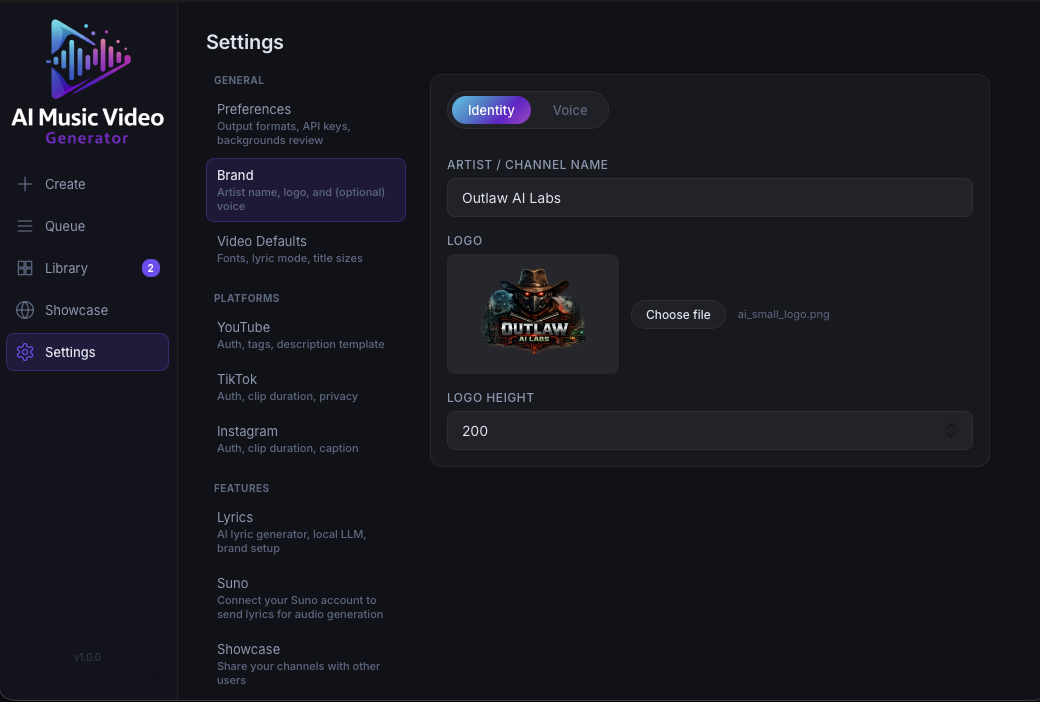
Open Settings → Brand → Identity and fill in:
- Artist / Channel Name. Shown on every video’s title card and in the small branding strip bottom-left. Keep it consistent — this is how viewers recognize your videos across platforms.
- Logo. Click Choose file to pick a PNG or JPG. The logo is overlaid top-right of every video. A transparent-background PNG works best. Anything from a wordmark to a small icon works.
- Logo Height (default 200). How tall the logo appears on a 1080p frame, in pixels. If your logo looks too large on a full render, drop this to 140–160.
That’s everything needed for renders. If you’re not using AI lyrics, you can stop here and skip ahead to Connect your accounts.
Voice — fine-tuning your brand as a band
Once you enable the AI Lyric Generator, a second tab appears: Settings → Brand → Voice. This is where you fine-tune your brand as a band. The LLM pulls from these fields every time it writes a song, so specifics here translate directly into distinct-sounding output.
The Voice tab has four required fields and several optional ones. At minimum, fill in:
- Genre — pick a preset lane (e.g. Dark Pop, Alt R&B, Hardwave) or choose Custom… to write your own short description. This sets the musical territory.
- Vocal type — female, male, duet (male + female), duet (male + male), or duet (female + female). Determines how the LLM phrases lines and how many voices trade off.
- Your Sound — a short character bio for the narrator, not a genre description. This is the field people get wrong most often, so it has its own section below.
- Explicit content —
Off,Contextual, orOn. Controls how direct the lyrics are allowed to get.
The optional fields (Vocal Persona for Suno, and the Advanced block with Themes / Never use / Always prefer / Artist references) are where you really dial in the fingerprint. Each one is covered in detail on Fine-tune your brand.
Your Sound — the most important field
This is the single field that decides whether your lyrics sound generic or sound like you. Think of it as a short character bio for the narrator — two to four sentences is plenty. You’re describing:
- Perspective — who the narrator is and what role they play.
- Attitude — what they feel toward the subject of their songs.
- Lens — what they notice, know, or fixate on that other writers don’t.
Concrete traits beat vague adjectives. The LLM leans on these specifics to keep the narrator sounding like a consistent person across every song you generate.
Bad (too vague, could be anyone):
Warm, nostalgic, thoughtful.
Better (real character):
A songwriter from a town everyone else left. Stayed on purpose, not by default. Writes about the diner regulars, the seasons, and the cars that pass through without stopping. Prefers specifics over metaphors — a street name, the smell of rain on hot asphalt, the exact hour the light changes on a Sunday afternoon.
The second one tells the LLM a person, not a mood. Do that and the generator has something to write toward.
See Fine-tune your brand → Your Sound for more examples and a prompt checklist.
Why it matters
A solid brand setup pays off in three places:
- Every render uses the artist name + logo automatically, so your finished videos are immediately recognizable.
- Every upload can pull from caption templates that reference
{channel}— you don’t have to rewrite your YouTube / TikTok / Instagram description for each song. - Every AI-generated lyric rides on your Voice. A precise narrator, a decisive explicit-content policy, and a filled-in Advanced block are the difference between generic lyrics and lyrics that sound like your project.
Running more than one brand
Most users only need one brand, and that’s what this guide assumes. If you run more than one channel or artist from the same install — say, two solo projects, or a “dark pop” lane and a “lo-fi” lane with different narrators — you can add more brands in Settings → Brands.
See Brands for the full walkthrough, including per-render overrides and the .mvg-brand export/import format.
Next steps
- Connect your accounts so you can upload when a render finishes.
- Enable the AI Lyric Generator if you want the app to help you write songs, not just render them.
- Ready to go deeper? Fine-tune your brand walks through every Voice field — including Advanced — with examples.
- Already have an MP3 ready to go? Jump to Make your first video.